Family Historian Features - What's New in Version 8
This page does not list all the features of version 8. It just lists the main features of 8 that are new since version 7. For an overview of the main features of v8, See Family Historian v8 features
The Main New Features
Smart Folders
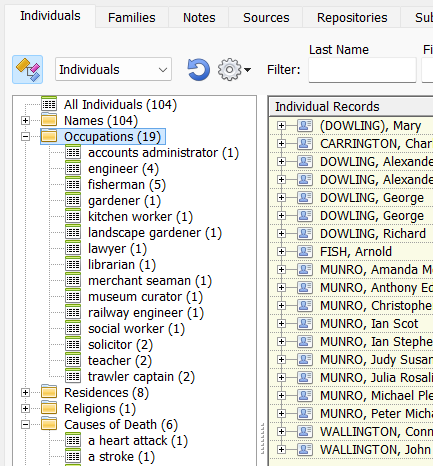 Smart Folders in the Records Window: people automatically sorted into folders by name, occupation, residence, religion and cause of death.
Smart Folders are a major Family Historian innovation and, we believe, a genealogy world first. We are not aware of any comparable feature anywhere else. Smart Folders allow all of your data to be automatically organised into customisable folders, instantly surfacing the interesting and important information that it contains. Smart Folders offer valuable insights and perspectives with records of all types, but perhaps are especially valuable when used with sources and citations. See Next Level Sources & Citations.
- Every record listing – that is, every tab in the Record Window, and every record selector dialog – now has a pane for displaying Smart Folders, which can be opened by clicking this icon (top-left): Smart Folders button
- Create your own custom sets of Smart Folders to display information organised in whatever way you want.
-
Smart Folders can also be viewed (and custom folder sets can be modified) in the Query Window. In the Query Window, any query type can be organised into Smart Folders, including not just records but also citations, witnesses (shared events) and facts.
Back to top ?
FamilySearch
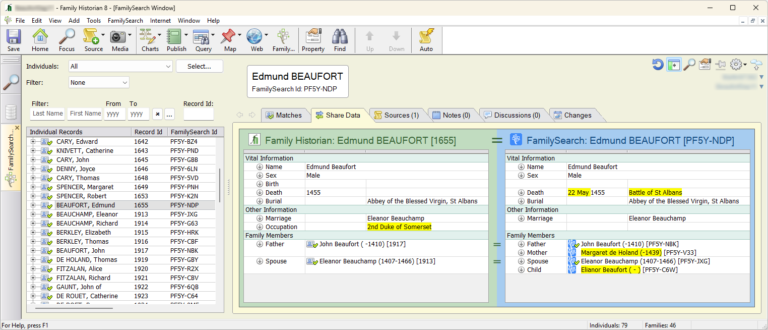 The new FamilySearch window: a person in your project (left) compared with the matching person in FamilySearch (right), with differences highlighted.
- FamilySearch is a nonprofit organisation and website, offering free global resources for all genealogists everywhere. It has more than 1.7 billion individual records in its main (global) tree. It is now fully supported within Family Historian. Users have to sign up for a free FamilySearch account to make use of the functionality. To learn more about FamilySearch, see the FamilySearch Wikipedia page.
- FamilySearch has recently introduced the ability to have shared user trees. You can create your own trees, public or private, and share them in a controlled way with whoever you wish. User trees are also fully supported within Family Historian. You can upload any project to FamilySearch as a user tree.
- Individuals in your projects can be (persistently) matched with individuals in a FamilySearch tree – either the global tree or a user tree. You can easily see where the records overlap and differ, and make changes in either direction – updating your Family Historian records from FamilySearch, or vice versa. None of your data is transferred to FamilySearch unless you explicitly opt to do that. You can use FamilySearch as a read-only resource if you wish to. It is entirely up to you, and under your full control.
You can opt to receive FamilySearch hints about historical records for matched Individuals. It is also possible to receive hints about possible duplication, and/or hints about unmatched Individuals in your projects who may have a match in a FamilySearch tree.
- You can download entire family trees from FamilySearch – into a new or existing project.
There is a new workspace window specifically for managing FamilySearch searches, matches and updates. You can optionally ‘float’ this window, so that it can be easily used in conjunction with any other workspace window. Suppose, for example, you are working on a chart and want to see all the information held within FamilySearch trees about a given person, you can view this in the floating window, with no need to switch away from the chart.
Back to top ?
New Mapping Tools
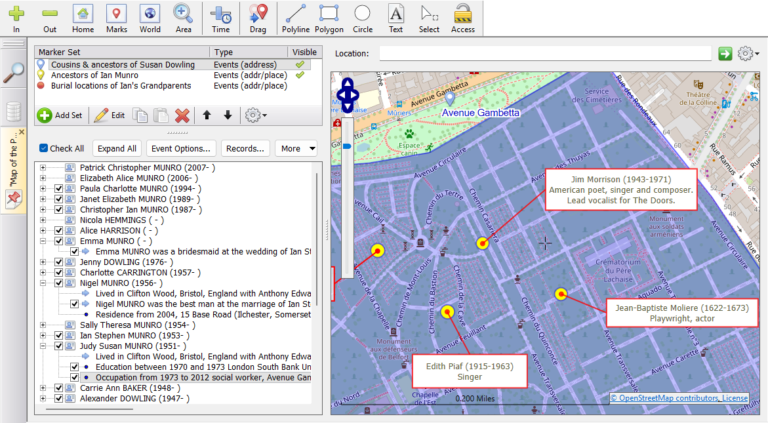 A map marking the area occupied by the Père Lachaise Cemetery in Paris, France, with notable graves flagged.
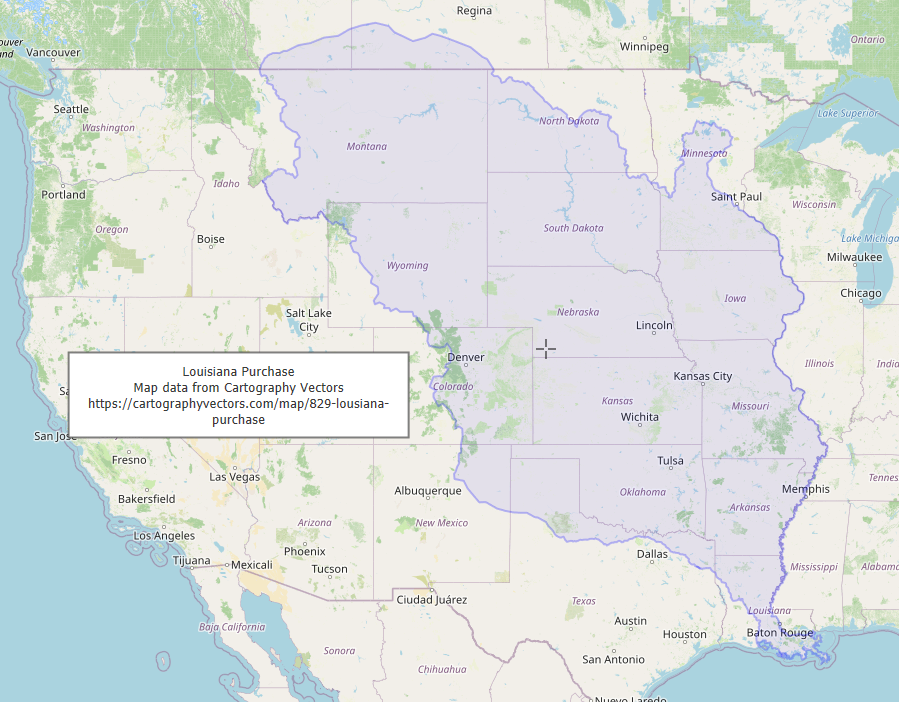 A map of the western and central United States with a shaded overlay marking the boundary of the Louisiana Purchase of 1803.
- You can now add shapes – such as lines, polylines, polygons, circles or text – to any map. Areas and regions can be highlighted without obscuring the underlying details. Shapes can be formatted, grouped and ordered with respect to one another. You also have full multi-level undo/redo with all shape edits.
- When you zoom in or out of a map, the shapes zoom in and out too, exactly like any other map feature, but with special-handling for text. Text shapes are anchored to particular points on the map, and can have callouts, which are lines connecting the text box to their anchor point. You control how text is zoomed so that it appears in an appropriate size in all contexts.
- Shapes can be locked in position, so that they behave as if part of the underlying map. A new ‘Access’ button on the map toolbar, allows locked shapes to be accessed, so that they can be selected, edited, moved and deleted.
- Maps now support overlays. An overlay is a way of annotating and marking distinctive features on maps. The program comes with a number of standard overlays, such as the historic counties of England, Scotland, Wales and Northern Ireland, as well as overlays which mark the boundaries of the former Soviet Union, the boundaries of the Roman Empire, and the boundaries of the U.S. at the start of the Civil War. Easily create your own custom overlays using map shapes (especially polygons and text). All shape collections can be saved as overlays. You can also import Family Historian overlays created by others, or import overlay files in a standard format (geoJSON) from the Internet.
- Markers (little icons, with various shapes and colours, which are used to mark locations on maps) have been extended to support addresses and have been made more intuitive and easier to use. You can optionally display text for each marker, and there are new features relating to them – such as the ability to mark events within a fixed distance of a specified point.
- The Marker Set pane has been redesigned to make it easier to view and manage multiple marker sets simultaneously. Marker sets can be copied and pasted, and hidden and shown.
- You can save and re-use maps and overlays. Map images can also be saved as Media records or image files, making it easy to incorporate them into reports, books and websites.
Back to top ?
AI Connector: Your AI Assistant, Working in Your Project
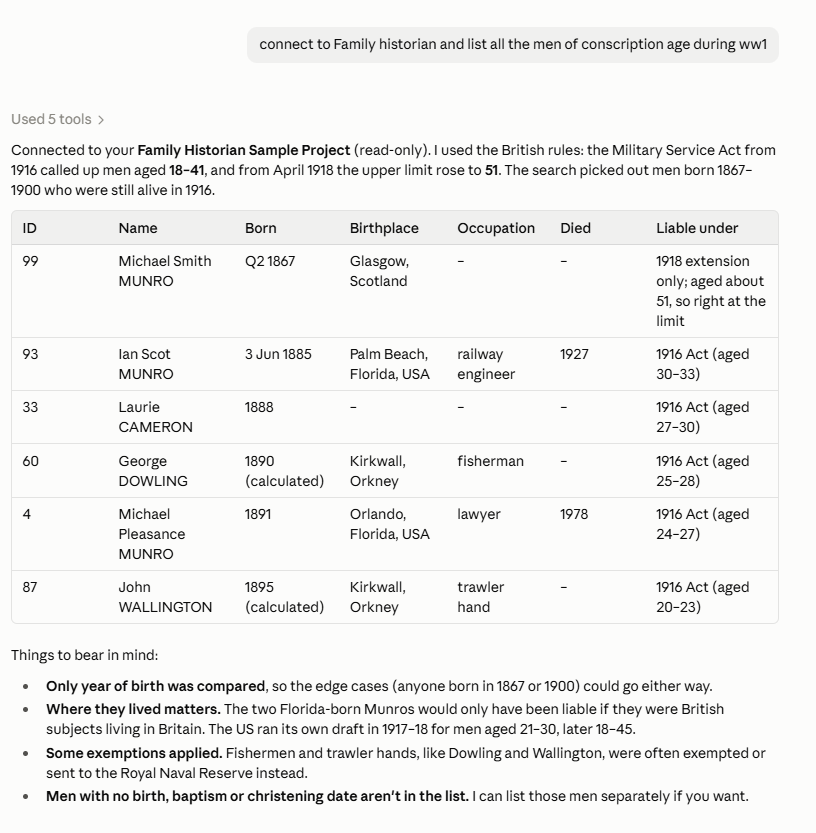 Asked in plain English for the men of conscription age during World War I, Claude searches the project and explains its reasoning.
- The new AI Connector is an installable plugin for version 8 that lets Claude, or another compatible AI assistant, work directly with your project data.
- It’s not just advice and reports. With read-write access, your AI assistant can do real work in your project. It can follow your instructions, read source images, search the Internet and your data, discuss uncertainties with you, transcribe source text and update your records. When it has finished, it can give you a list of the changes it made, for you to check.
- Just ask. For example: “List all the men in my project who were of conscription age during World War I.” “Here’s a scan of my grandfather’s birth certificate – record everything in it, with a proper source citation.” “Find everyone whose married and maiden names are recorded inconsistently, and suggest fixes.” “Check my whole project for impossible dates and other errors, and go through them with me.”
- You have full control. Access is only enabled while the AI Connector is running. When you start it, you choose read-only or read-write access. If you allow changes, you can still undo all of them when you close it.
- It’s built into Family Historian. The AI Connector works through Family Historian itself, using its API (“application programming interface”), rather than editing your project file directly. We know of no other commercial genealogy program with an API comparable to Family Historian’s.
- It’s entirely optional. Family Historian works exactly as before without it. To use it, you’ll need your own account with an AI service such as Claude, and some features may need a paid plan. Any information the AI reads from your project is sent to that service, so check its privacy terms.
Back to top ?
Family Historian Mobile: Your Family Tree on Your Phone
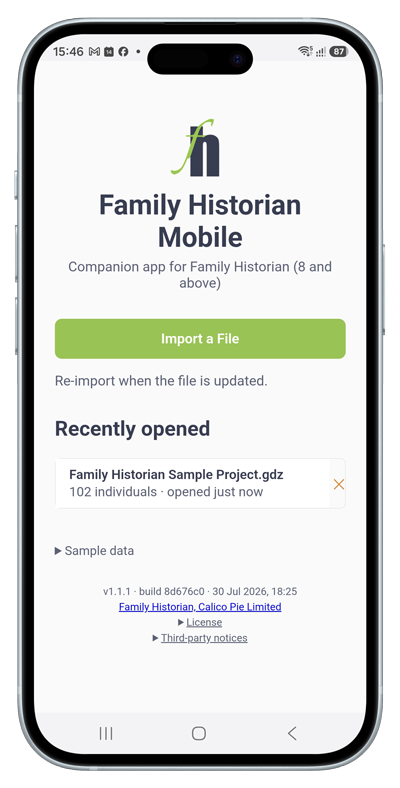
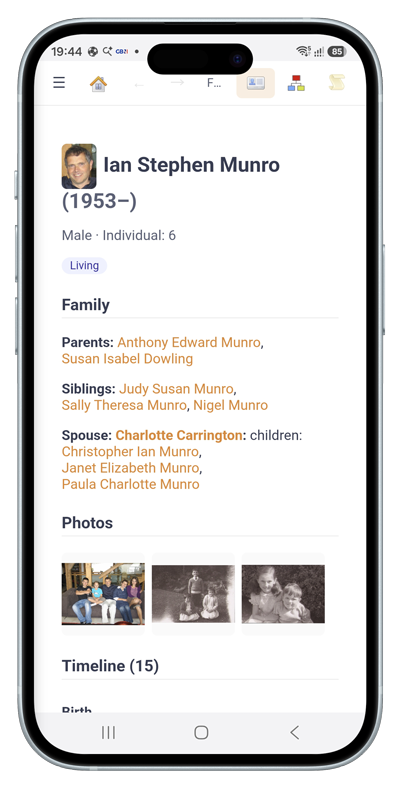 Family Historian Mobile: (left or (top image)) a person’s page, with family, photos and timeline. (right or (bottom image)) a person’s page, with family, photos and timeline
- Family Historian Mobile is a free companion app for Family Historian 8. It is available now for Android, as a public beta, and an iPhone version is in development.
- It puts your whole family tree in your pocket. The app gives you quick, easy read-only access to all your project data – people, relationships, events, dates, sources, citations, pictures and more. You can view relatives in diagrams, and see events marked on maps.
- It’s made for version 8. Family Historian 8 can create a compact copy of your project especially for the app, with pictures scaled down to a size that suits a phone.
- It’s easy to keep up to date. One of the simplest ways to keep the app in sync with your desktop project is to share the data using a cloud drive, such as Dropbox, OneDrive or Google Drive.
- You can download it free from the Family Historian Mobile page. Because the app isn’t yet in the Google Play Store, Android will show a security warning when you install it. Our step-by-step instructions explain what to expect. We expect the app to be available from the Google Play Store and the Apple App Store in future.
Phone images created using MockUPhone
Back to top ?
Do More With Addresses (and Places)
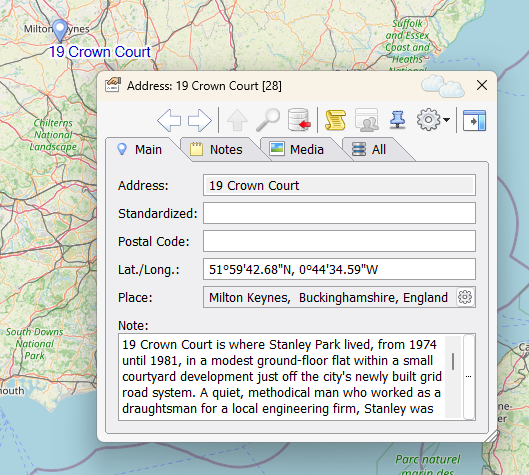 An Address record with its own map location, place and notes – and its marker on the map
Background: Family Historian allows you to record not only the place of the event (for example: ‘Greenwich, London, England’), but optionally also the actual address within that. This can be a literal address (’14 Main Street’), or some other kind of detailed specification of the exact location – such as a hospital name or the plot location of a grave in a cemetery.
An Address record with its own map location, place and notes – and its marker on the map
Background: Family Historian allows you to record not only the place of the event (for example: ‘Greenwich, London, England’), but optionally also the actual address within that. This can be a literal address (’14 Main Street’), or some other kind of detailed specification of the exact location – such as a hospital name or the plot location of a grave in a cemetery.
- Previously you could only record the exact map location for places. Now you can do this for addresses too.
- Previously you could only store pictures and descriptions of places. Now you can do this for addresses too.
- Within a book or booklet, you can now add a separate section for the addresses mentioned in the book, with images and text. You can also now do this with places.
- Reports, books, queries, Smart Folders and mapping tools open up a world of possibilities for recording and presenting information about addresses and the people who lived there.
Back to top ?
Redesigned Queries
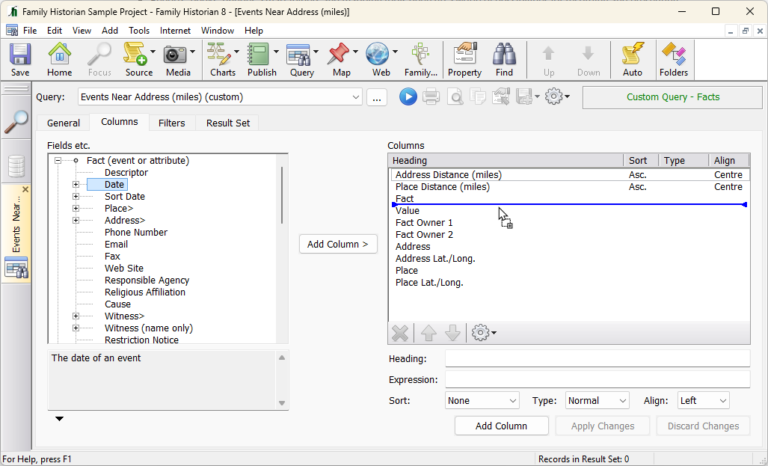 The redesigned Query Window: Queries are all about getting answers to your questions about your data: “Which of my ancestors died of cancer?”, “Which family members lived in Scotland in the 19th C?”. Queries are a powerful tool for getting the answer to any and all of your questions. Above image shows adding columns to a query that finds events near an address.
- Queries have been redesigned and are now simultaneously more powerful and easier to use and to understand. Old-style queries are still fully supported and are automatically converted to the new format.
- The query columns you want are now easier to find and insert. Commonly-used functions (expressions for retrieving complex and derived information) are now listed in the Columns tab – in addition to field names – and can be easily inserted into queries using drag-and-drop.
- Filters – including filter combinations and conditions – are easier to create and to understand.
- There is a new window for organising and managing queries, which allows easy selection and filtering of queries, as well as allowing queries to be run, viewed, renamed, cloned, deleted, and imported or exported.
- There are 9 new standard queries (such as a query to find addresses linked to a given list of Individuals) and 3 new query types – for addresses, witnesses (shared events), and source citations.
New All Relatives Narrative Report
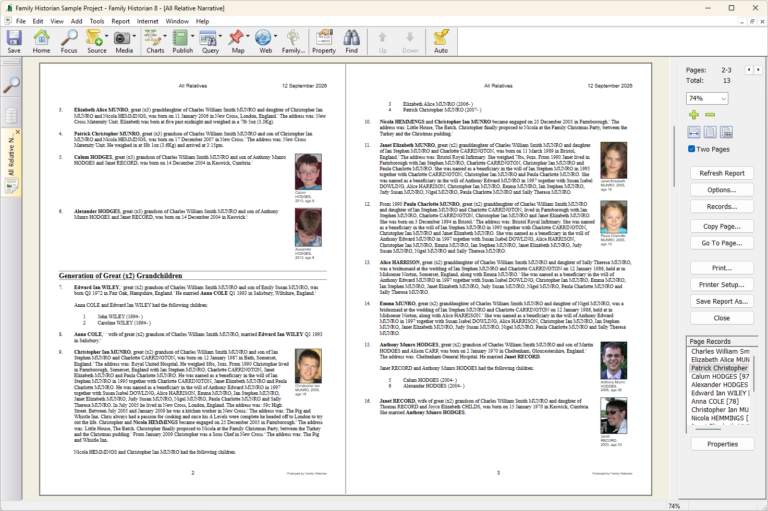 The new All Relatives Narrative report, organised by generation, with pictures.
- A major new report – the All Relatives Narrative report – includes all relatives of a subject person, in narrative format, organised by generation, with the youngest generation first.
- The new report optionally includes a section showing ancestors and descendants of the subject person, for easy reference.
- Each section on each person includes how they are related to the subject person.
- When a relation wants to know what information you have about their relatives, you can now just generate an All Relatives Narrative report for them, and send it to them as a PDF file. It’s all there.
Back to top ?
|
 01302 288722